

How to Create New Connections
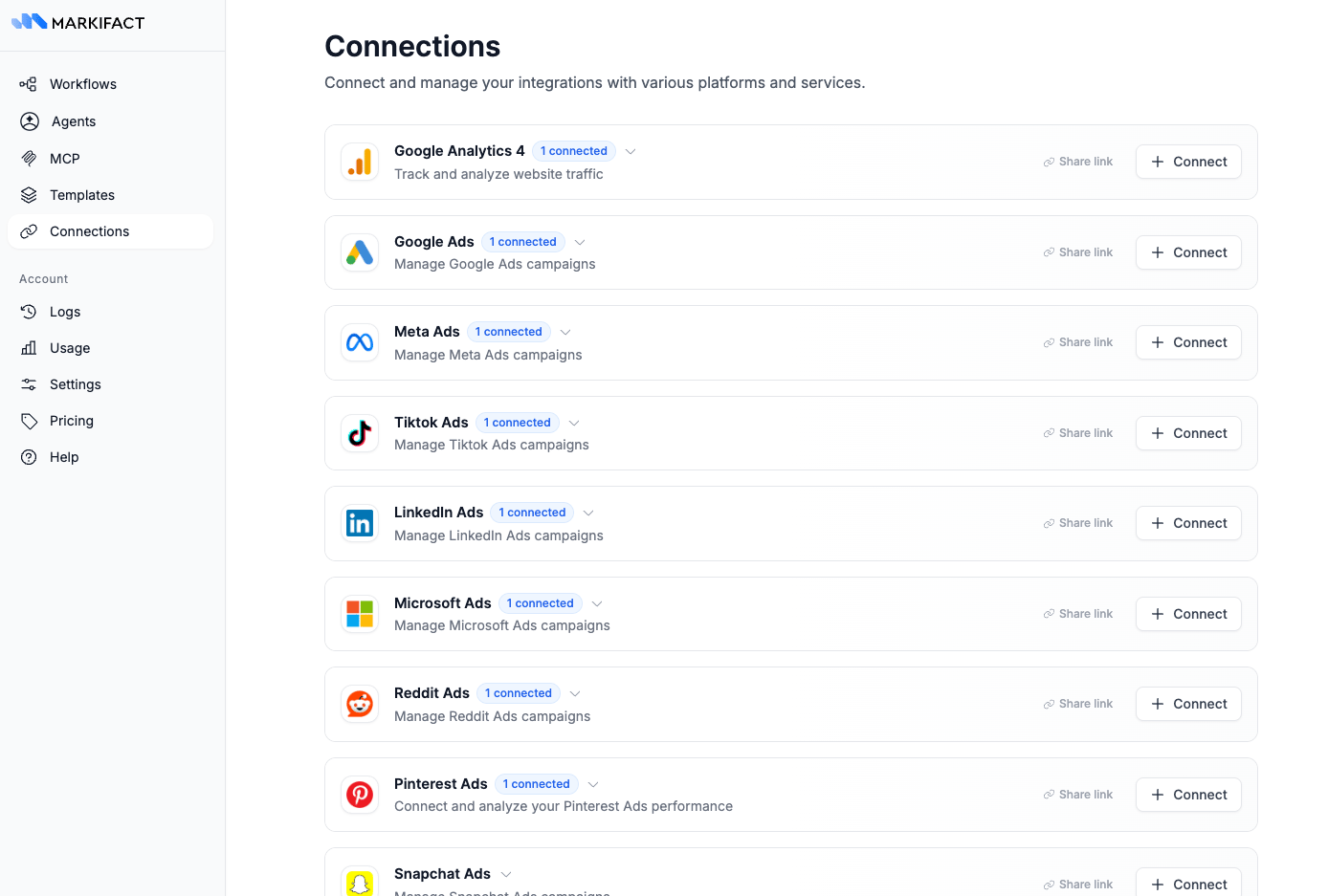
You can create connections in two ways: directly from the Connections page or when configuring nodes in your workflows.From the Connections Page:
- Go to the Connections page from the sidebar
- Click “Add Connection” or the ”+” button
- Select the platform you want to connect (Google Ads, Meta Ads, Slack, etc.)
- Follow the authentication process - Log in and grant permissions
From a Workflow Node:
- Go to the workflow editor
- Click on an app node in your workflow (like Google Ads or Slack)
- Follow the connection process - A sidebar will open and guide you through authentication
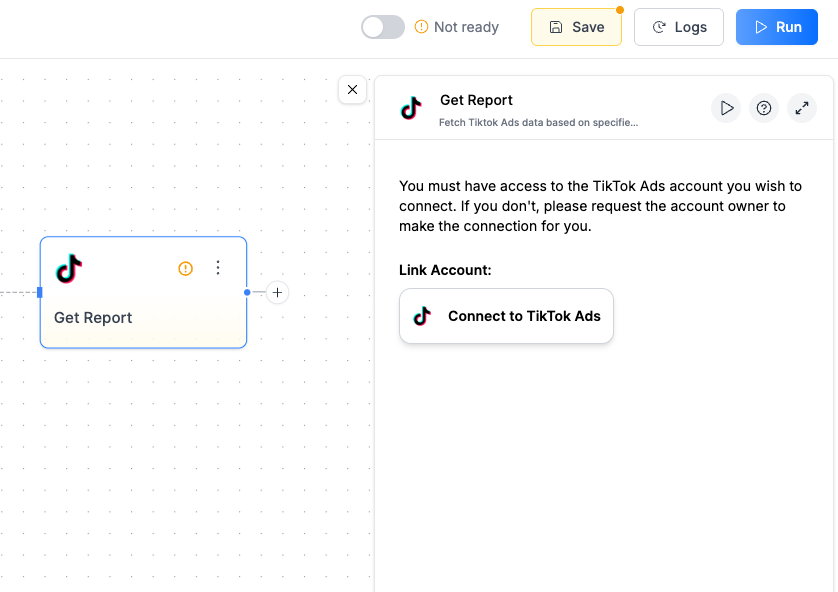
- Logging into your account (e.g., Google, Meta, Slack)
- Granting Markifact permission to access your data
- Selecting which accounts or properties to connect
Managing Multiple Connections
You can add an unlimited number of connections for the same platform. For example, you might have separate Google Ads connections for different clients or business units. To refresh an existing connection, connect the same account again. Markifact will refresh the existing connection instead of creating a duplicate.The Connections Page
The Connections page is your central hub for managing all your connections. Here you can:- Create new connections using the “Add Connection” or ”+” button
- View all connected platforms and accounts
- See connection details like when they were created
- Delete connections you no longer need
- Organize connections by platform
Sharing and Visibility
Every connection belongs to your team and has an owner — the person who created it. A connection is either:- Shared (default) — available to your whole team. Team members can use it in workflows, shared Agents, and MCP tools.
- Private — only visible and usable by the owner. It won’t appear in anyone else’s connection lists.
Changing Sharing
On the Connections page, each connection shows its owner and a sharing indicator: a team icon for shared connections and a lock icon for private ones. Click the indicator to toggle between shared and private. Only the owner can change a connection’s sharing — and only the owner can delete it. Other team members can see and use shared connections, but not manage them.Before Making a Connection Private
When you make a shared connection private:- Existing workflows that other team members built with it will break until they’re reconfigured with a different connection
- Team members can no longer use it in Agents or MCP tools
- You can share it with your team again at any time
Bring Your Own AI API Keys
You can connect your own API keys from OpenAI, Google Gemini, or Anthropic to use with AI nodes. This significantly reduces your Markifact credit costs—AI nodes become free, and agent nodes cost just 1 credit flat.Learn More
See how to add your API keys, where to get them, and how credits work.
Quick Connect vs White-label Connections
Every connection runs through an app registered with the platform. By default that is Markifact’s app (Quick Connect), which is why Markifact appears in your client’s account as an authorized application. On the Team plan you can connect through your own app instead, which is what white-label connections are.
Both options are equal once connected. The same nodes, agents, and MCP tools work either way, and you can mix them: Quick Connect for your own accounts, a custom app for the clients who ask.
What White-label Changes
The thing agencies care about is what the client sees. With a custom app:- Change history shows your app. When Markifact makes a change through Quick Connect, platforms that name the application behind a change attribute it to Markifact. Google Ads shows the app name in its change history, so a client reviewing who edited a campaign sees your app instead.
- The consent screen shows your app’s name and logo when the client authorizes, instead of Markifact’s.
- The client’s connected apps list shows your app. This is the page clients check when they audit who has access to their account, for example Google account permissions, Meta Business settings > Business integrations, or Connected apps on X. Markifact never appears there.
- API calls are attributed to your app, so your app’s quota and rate limits apply rather than Markifact’s shared pool.
What It Does Not Change
Being precise here saves you an awkward conversation with a client:- The authorizing user is still recorded. Alongside the app, platforms log the account that granted access, so changes are still traceable to a person. A custom app changes which application is named, not whether the activity is auditable.
- Credentials are still stored by Markifact, encrypted, exactly as with Quick Connect. A custom app changes whose app makes the calls, not where the connection lives.
- Nothing changes inside Markifact. Reports, workflows, and agents behave identically.
Set Up White-label Connections
Supported channels, how verification works, and per-channel setup guides.
Deleting Connections
When you delete a connection:⚠️ Warning: Any active workflows using this connection will be deactivated until you reconfigure them with a new connection.
Before deleting:
- Check which workflows use this connection
- Make sure you have alternative connections set up if needed
- Consider if any scheduled workflows will be affected
To delete a connection:
- Go to the Connections page
- Find the connection you want to remove
- Click Delete
- Confirm the deletion in the dialog
Common Connection Issues
My connection shows as expired or invalid
My connection shows as expired or invalid
Some platforms require periodic re-authentication. Go to the node using that connection and follow the authentication flow again. Your existing workflows will continue working once re-authenticated.
I can't see data from my connected account
I can't see data from my connected account
Check that your connection has the right permissions and that you’ve selected the correct account in the node settings. Some platforms have multiple levels of access that affect what data you can pull.
What happens to my workflows if I delete a connection?
What happens to my workflows if I delete a connection?
Workflows using the deleted connection will be deactivated and show errors. You’ll need to reconfigure those nodes with a different connection before the workflows can run again.